Overview
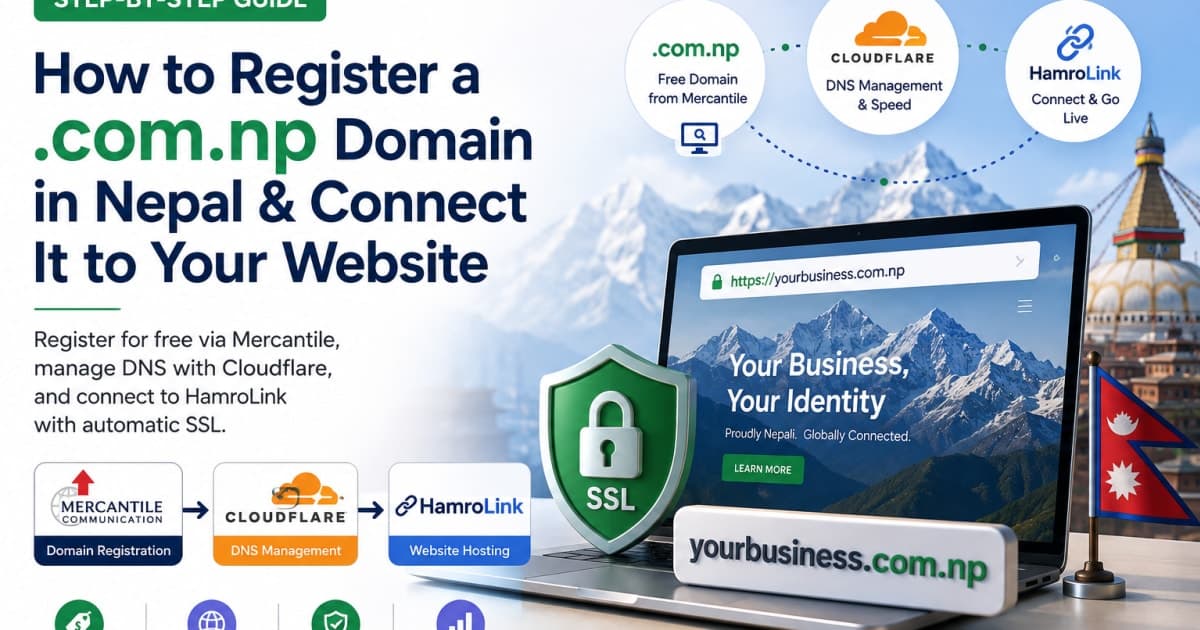
Nepal offers official .com.np country-code top-level domain (ccTLD) extensions completely free of charge. Administered by Mercantile Communication, these domains are exclusively reserved for Nepali citizens, registered companies, non-profits, and local organizations.
Mercantile manages domain registration and nameserver delegation, but it does not provide a modern DNS management interface. Cloudflare becomes your DNS control panel, allowing you to manage website records, email records, verification records, and SSL from one place. Using Cloudflare gives you a centralized DNS dashboard, global CDN speed, free SSL certificates, and protection against web threats—making it the ideal bridge between Mercantile and HamroLink.
Architecture: How It All Connects
       ┌──────────────┐
       │     You      │
       └──────┬───────┘
              │
              ▼
   ┌────────────────────┐
   │ Mercantile (.np)   │  (Domain Registration & Delegation)
   └──────────┬─────────┘
              │
              ▼
   ┌────────────────────┐
   │     Cloudflare     │  (DNS Management, SSL & Security)
   └──────────┬─────────┘
              │
              ▼
   ┌────────────────────┐
   │     HamroLink      │  (Website Builder & Hosting)
   └──────────┬─────────┘
              │
              ▼
   ┌────────────────────┐
   │      Visitors      │  (End Users)
   └────────────────────┘
Guide Index
- Required Documents & cover letter templates for personal and business domains.
- Registering your domain on
register.com.npusing Cloudflare nameservers. - Connecting your domain to your HamroLink website step-by-step.
- Key features and local SEO advantages for Nepali businesses.
- Common Troubleshooting Issues.
- Frequently Asked Questions (FAQ).
[!TIP] Related Guides:
1. Required Documents & Eligibility
Mercantile enforces strict verification rules to prevent domain squatting. Your requested domain name must directly match your personal identity or officially registered business name.
| Category | Allowed Domain Name Format | Required Verification Documents |
|---|---|---|
| Personal & Freelancer | Must match your full legal name as written on your ID (e.g., suman-basnet.com.np or sumanbasnet.com.np). | • Scanned Nepali Citizenship Certificate (front & back), Passport, or Driving License. • Signed cover letter requesting domain registration. |
| Registered Business / Organization | Must match company name, registered PAN/VAT name, or established brand abbreviation (e.g., edulink.com.np). | • Scanned Company Registration Certificate. • Scanned PAN/VAT Registration Certificate. • Signed and stamped cover letter on official company letterhead. |
[!IMPORTANT] Document Scanning Guidelines:
- Upload clear scans or high-resolution photos in JPG, JPEG, or PDF format.
- Individual file size must be under 2 MB.
- Images must be legible with all text and official stamps clearly visible.
Cover Letter Templates
You must submit a written request letter to Mercantile Communication. You can use the templates below:
Template A: Personal Cover Letter
To,
The Domain Administrator,
Mercantile Communication Pvt. Ltd.,
Kathmandu, Nepal.

Subject: Request for free .com.np domain registration (suman-basnet.com.np)

Dear Sir/Madam,

I am writing to formally request the registration of the free domain name "suman-basnet.com.np" under my legal name, Suman Basnet.

I have attached a scanned copy of my official Nepali Citizenship Certificate for identity verification. I agree to abide by the domain terms and conditions set forth by Mercantile Communication.

Requested Domain: suman-basnet.com.np
Primary Nameserver: alice.ns.cloudflare.com
Secondary Nameserver: bob.ns.cloudflare.com

Thank you for your assistance.

Sincerely,
[Your Signature]
Suman Basnet
Contact: +977-98XXXXXXXX
Email: yourname@gmail.com
Template B: Business / Organization Cover Letter (Official Letterhead)
[COMPANY LETTERHEAD WITH LOGO & ADDRESS]

Date: DD/MM/YYYY

To,
The Domain Administrator,
Mercantile Communication Pvt. Ltd.,
Kathmandu, Nepal.

Subject: Application for registration of domain name "yourbusiness.com.np"

Dear Sir/Madam,

On behalf of [Your Business Name Pvt. Ltd.], we kindly request the registration of the domain name "yourbusiness.com.np".

Our company is registered under the Office of the Company Registrar / Ward Office with Registration No. [Registration Number] and PAN No. [PAN Number]. Scanned copies of our Registration Certificate, PAN Certificate, and this official application letter are attached for your review.

Requested Domain: yourbusiness.com.np
Primary Nameserver: alice.ns.cloudflare.com
Secondary Nameserver: bob.ns.cloudflare.com

Thank you for your prompt consideration.

Yours faithfully,

[Authorized Signature & Official Company Stamp]
[Full Name of Authorized Person]
[Designation e.g., Managing Director]
[Company Phone Number]
2. Registering Your Domain on register.com.np
Follow these step-by-step instructions to apply for your domain through the Mercantile portal:
Step 1: Search Domain Availability
- Visit the official portal at https://register.com.np.
- Enter your desired domain name (e.g.,
yourbusiness) in the search bar and select.com.np. - Click Search Domain. If the status shows Available, proceed to the next step.
Step 2: Create a Mercantile Account
- Click Register in the top right corner.
- Enter your full name, valid email address, and a strong password.
- Check your email inbox and click the verification link sent by Mercantile to activate your account.
Step 3: Add Your Domain to Cloudflare
Before submitting your Mercantile application, set up a free Cloudflare account to manage your DNS.
- Go to dash.cloudflare.com and create a free account.
- Click Add a site and enter your domain name (e.g.,
yourbusiness.com.np). - Select the Free Plan and click Continue.
- Cloudflare will scan for existing records and assign two authoritative nameservers (for example:
alice.ns.cloudflare.comandbob.ns.cloudflare.com). Note these down.
[!NOTE] Why Use Cloudflare for
.com.npDomains? Mercantile manages domain registration and nameserver delegation, but it does not provide a modern DNS management interface. Cloudflare becomes your DNS control panel, allowing you to manage website records, email records, verification records, and SSL from one place.
- Global DNS Speed: Fast DNS query response times worldwide.
- Free SSL/TLS Management: Flexible SSL options that pair seamlessly with hosting engines.
- Unified Dashboard: Easy management of A, CNAME, MX (email), and TXT verification records in one place.
- Security & Protection: Free DDoS mitigation and Web Application Firewall (WAF) features.
- Future-Proof Workflow: Simplifies adding third-party tools like Google Workspace, Zoho Mail, or analytics.
Step 4: Enter Cloudflare Nameservers in Mercantile Portal
- Return to register.com.np and sign in.
- Select your available domain and click Register Now.
- Under Nameserver Configuration, enter the two nameservers provided by Cloudflare:
- Primary Name Server:
alice.ns.cloudflare.com - Secondary Name Server:
bob.ns.cloudflare.com
- Primary Name Server:
Step 5: Upload Required Documents
- Navigate to the Document Upload tab.
- Select document type (Citizenship / Passport / Company Registration / Cover Letter).
- Upload the scanned files in PDF or JPG format.
- Double-check that all uploads are clear and readable.
Step 6: Submit for Verification
- Click Submit for Approval.
- Mercantile staff will manually verify your submission.
- Approval typically takes 1 to 2 business days. You will receive an email confirmation once approved and delegated.
3. Connecting Your Domain to HamroLink
After Mercantile approves your domain and delegates nameservers to Cloudflare, complete the connection inside Cloudflare and HamroLink.
Step 1: Obtain DNS Records from HamroLink
- Log in to your creator account at
app.hamrolink.com. - Select your website project and navigate to Settings → Custom Domain.
- Enter your full
.com.npdomain (e.g.,yourbusiness.com.np). - Note down the specific DNS records displayed in your dashboard.
[!IMPORTANT] Dynamic DNS Record Notice: Add the DNS records shown in your HamroLink dashboard. Depending on your hosting configuration, these may include A, AAAA, or CNAME records. Copy the values exactly as displayed in Settings → Custom Domain.
Step 2: Configure DNS Records in Cloudflare
- Log in to your Cloudflare Dashboard.
- Select your domain (
yourbusiness.com.np) and open DNS → Records. - Add the DNS records provided by HamroLink (e.g. A, CNAME, or AAAA records).
- Save the DNS changes.
[!NOTE] DNS Propagation Note: DNS changes are usually visible within a few minutes through Cloudflare, although some networks may take up to 24 hours to refresh cached records.
Step 3: Connect & SSL Provisioning
- Return to the HamroLink dashboard and click Connect Domain.
- HamroLink automatically verifies your DNS configuration.
- Once DNS propagation is complete, an SSL Certificate (HTTPS) is automatically provisioned for your site.
- Your website is now live at
https://yourbusiness.com.np!
4. Key Operational Features for Nepali Websites
Connecting a .com.np domain to your HamroLink site unlocks key benefits for operating in Nepal:
- 🇳🇵 Localized Search Signals: A
.com.npdomain signals that your website is intended for users in Nepal. Combined with localized content, Google Business Profile, and strong on-page SEO, it can help improve visibility for searches within Nepal. - 💳 Local Payment Gateway Ready: Native support for eSewa, Khalti, and Fonepay dynamic QR payment integrations.
- 🤖 AI-Powered Customer Assistant: Enable an automated AI staff chatbot to handle customer inquiries in English and Nepali 24/7.
- ⚡ High Speed CDN: Cloudflare's global edge network paired with HamroLink infrastructure ensures fast load times across NCELL, Nepal Telecom, and local ISPs.
5. Common Troubleshooting Issues
Domain stuck on Pending Approval
- Verify Cover Letter: Ensure the cover letter includes the exact requested domain name, primary & secondary Cloudflare nameservers, and a handwritten signature (or official company seal for businesses).
- Match Name Exactly: Double-check that your requested domain name matches your legal ID or registered business name.
Website not opening after setup
- Match Dashboard Records: Confirm that the Cloudflare DNS records (A, CNAME, or AAAA) match the values provided in your HamroLink dashboard.
- Propagation Time: Wait a few minutes for Cloudflare DNS propagation to complete across your local ISP network.
SSL / HTTPS still pending
- Verify DNS Status: Ensure your DNS records in Cloudflare are correctly pointed to HamroLink.
- Propagation Wait: Wait a few minutes after DNS propagation completes.
- Recheck Status: Recheck the custom domain status in your HamroLink dashboard settings.
6. Frequently Asked Questions (FAQ)
Is a .com.np domain truly free forever?
Yes. Mercantile Communication provides registration and renewal of .com.np domains free of charge. There are no hidden renewal fees.
Can I register any domain name I want?
No. Mercantile manually reviews every application. Personal domains must strictly match your legal name on your government ID. Business domains must match your registered company name, PAN name, or recognized brand abbreviation.
Can I update my nameservers or DNS settings later?
Yes. You can log into your register.com.np account at any time to update your nameservers, or use your Cloudflare dashboard to update DNS records (A, CNAME, MX, TXT) instantly without waiting for Mercantile approval.
Is coding required to link my domain?
No coding is required. You only need to copy the Cloudflare nameservers into Mercantile and enter your domain name inside your HamroLink dashboard settings.
What should I do if my domain application is rejected?
The most common rejection reasons are:
- Name Mismatch: Your domain name does not match your ID or company documents.
- Blurry Documents: Text or stamps on your scan are unreadable.
- Missing Signature/Stamp: The cover letter is un-signed or lacks the official company seal.
If rejected, log into register.com.np, re-upload corrected documents, and resubmit.
Next Steps
A .com.np domain gives your business a trusted, professional web address in Nepal at zero domain registration cost. Combined with Cloudflare's DNS security and HamroLink's drag-and-drop website builder, you can launch your business site in minutes.
🚀 Ready to build your website?
Start your free trial on HamroLink today and publish your business online!
Comments
Be the first to leave a comment.